Publication history: This guide incorporates and updates “How to send a link for Google review”, first published on Finn McCool Marketing on 12 March 2020. The current guide was consolidated and reviewed on 17 October 2026.
Asking for a review should feel like a natural part of looking after a customer. You have done the work, they have had an experience and you make it easy for them to describe it honestly.
You do not need an elaborate campaign or a script asking everyone for five stars. Start with the correct link, a brief request and a consistent process that does not pressure people.
This guide covers the practical setup and wording. The aim is useful, credible feedback that helps future customers make a decision.
Create your Google review link
Use the Google account that manages your Business Profile, then follow these steps:
- Open your Business Profile.
- Select Read reviews, then Get more reviews.
- Copy the review link provided.
- Test the link before putting it in emails or printed material.
These are the steps in Google’s current review-link instructions, checked in October 2026. Interface labels can change, so use that official guide if your screen looks different.
When testing, confirm that the link opens the correct business and location. A multi-location company should not accidentally send every customer to one branch. Save the checked link somewhere the relevant team members can find it.
Download a QR code for printed material
Google also supplies a QR code in the same review-sharing area. Its current guidance says QR-code generation is available in a computer browser, rather than on mobile. Right-click the displayed code and save the image.
A QR code is helpful on a receipt, a small counter sign or a card handed over after a completed job. On a website or in an email, include a normal clickable link as well: a person reading on their phone should not have to scan their own screen.
Print a sample at the size you intend to use and test it with a phone. Leave enough clear space around the code, use strong contrast and avoid placing it over a photograph. A decorative design is not useful if the code is difficult to scan.
A neutral review-request template
Keep the message short and make the invitation optional. For example:
Thank you for choosing us. If you would like to share your experience, you can leave an honest Google review here: [your review link]. Your feedback helps other customers understand what to expect and helps us improve. There is no obligation.
Replace the bracketed text with your tested link. You can mention the type of work completed, but do not put private details into a message unnecessarily.
For a small printed card, something simpler works:
How was your experience? Scan to leave an honest Google review. Thank you for your feedback.
Let the customer choose what to say. Asking them to repeat keywords, name a particular employee or copy wording you have prepared can make the result feel manufactured.
Ask consistently, without filtering the answers
Choose a sensible point in the customer journey: after delivery, after a completed appointment or once the customer has had a reasonable chance to use what they bought. The right timing depends on the service.
Avoid a process that first asks “Were you happy?” and only directs happy customers to Google. That is review gating. Google’s contribution policy prohibits selectively soliciting positive reviews and discouraging or prohibiting negative ones.
The policy also rules out incentives for reviews. Do not offer discounts, gifts or prize-draw entries in return for a review, or a reward for changing or removing a negative one. Buying reviews or arranging invented customer experiences undermines the very trust you are trying to build.
You can invite private feedback and provide a contact route for problems. Make that available to everyone, rather than using it to divert dissatisfied customers away from a public review.
What customers need to know
Customers need to sign in to a Google account to leave a Google Maps review. Reviews are public, and Google explains what profile information appears alongside them in its instructions for adding reviews. Do not describe the process as anonymous.
A Google account does not have to use a Gmail address. Google allows an existing non-Gmail email address when creating an account. Avoid telling customers they must open a Gmail inbox to leave feedback.
Some people will not want to sign in or share feedback publicly. Accept that. A review request should not become a condition of receiving good service.
If a customer cannot get the link to work, check it yourself before asking them to keep trying. Avoid requesting screenshots that expose their account details. A simple description of the problem is often enough to begin troubleshooting.
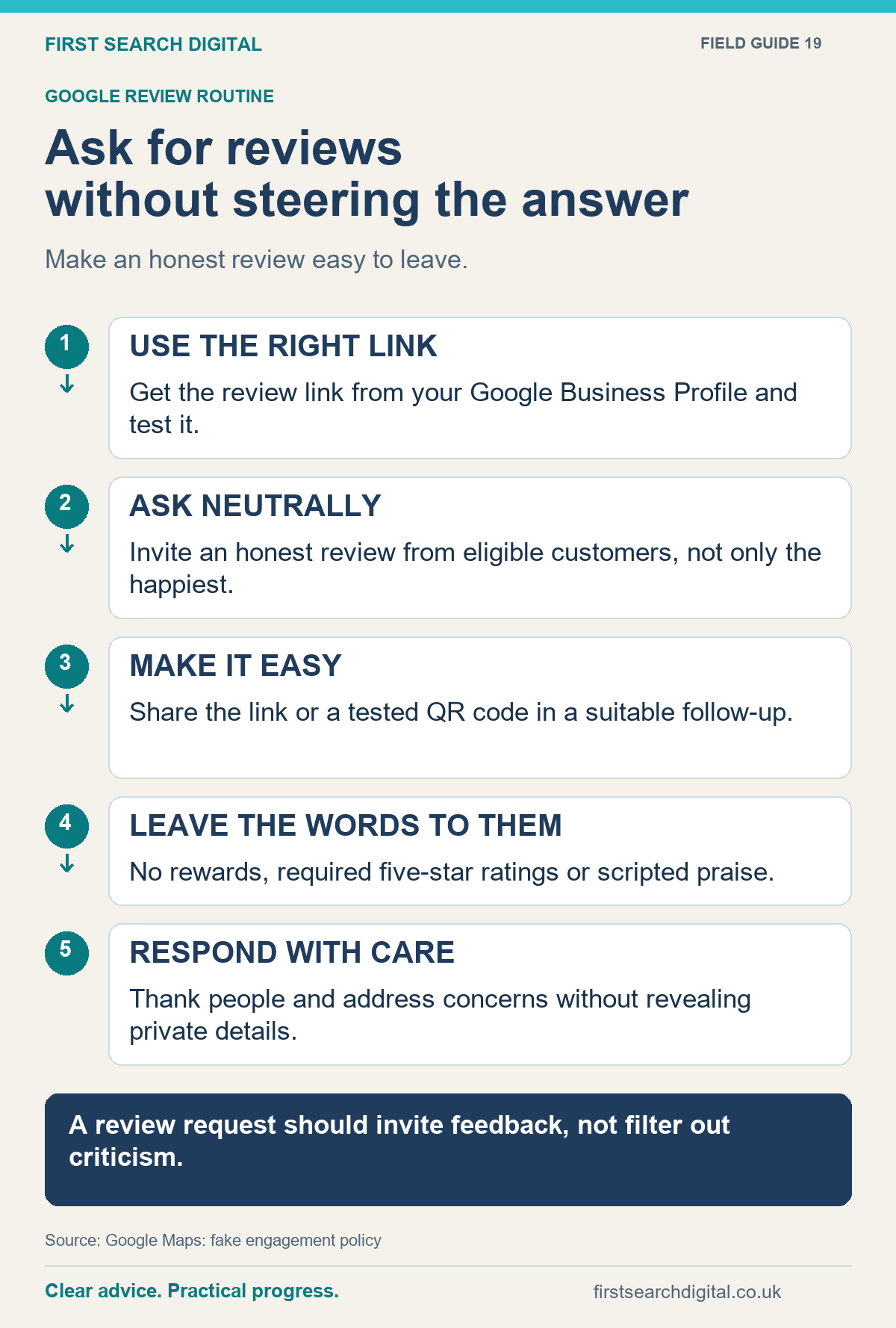
Text version of the infographic: Ask for reviews without steering the answer
Ask for reviews without steering the answer
Make an honest review easy to leave.
USE THE RIGHT LINK — Get the review link from your Google Business Profile and test it.
ASK NEUTRALLY — Invite an honest review from eligible customers, not only the happiest.
MAKE IT EASY — Share the link or a tested QR code in a suitable follow-up.
LEAVE THE WORDS TO THEM — No rewards, required five-star ratings or scripted praise.
RESPOND WITH CARE — Thank people and address concerns without revealing private details.
A review request should invite feedback, not filter out criticism.
Sources: Google Maps: fake engagement policy.
A simple link in your email signature
One useful idea from the original 2020 guide is an unobtrusive email-signature link: “Share your experience on Google”. Link those words to the review address generated by your Business Profile. Use neutral wording, keep your normal contact details easy to find and do not add stars or a promise of a reward.
A signature link is a convenience for customers who want to respond, rather than a replacement for a thoughtful request after the work is complete. Check the link when you change a business location or update your signature.
Build the request into normal work
A small, repeatable routine is easier to maintain than occasional bursts of requests. Decide who sends the message, which point in the job triggers it and where the current link is stored.
- Use one approved, neutral template.
- Check that the same customer is not receiving requests from several team members.
- Make the invitation easy to decline or ignore.
- Keep a working contact route for service problems.
- Review the wording when your process or business locations change.
Be careful with automated follow-ups. A customer who has chosen not to review you does not need a sequence of increasingly urgent reminders. The tone should match the personal service you want the review to reflect.
Respond in a way future customers can trust
Thank people naturally and respond to the substance of their feedback. A brief, specific reply is usually more useful than repeating the same promotional paragraph under every review.
For a complaint, remain calm. Acknowledge what needs attention and offer an appropriate private route to discuss the details. Avoid publishing personal information or arguing through a long chain of public replies.
Reviews can also reveal practical improvements: confusing arrival instructions, unclear quotes or a part of your service customers particularly appreciate. Bring that feedback into your website and working processes, rather than treating the review count as the whole objective.
Put this into practice
Before directing more customers to your site, use BusinessCheck to review your published contact details and internal links. It complements the profile review; it does not generate or manage Google reviews.